Back to AWS / CloudAWS / Cloud

Hire Me Portfolio – AWS Production Deployment

Production-ready PHP portfolio deployed using AWS EC2 and RDS MySQL.

Hire Me Portfolio – AWS Production Deployment
PHP 8.2MySQLApacheHTMLCSSJavaScriptGit
AWS DEPLOYMENT SYSTEM

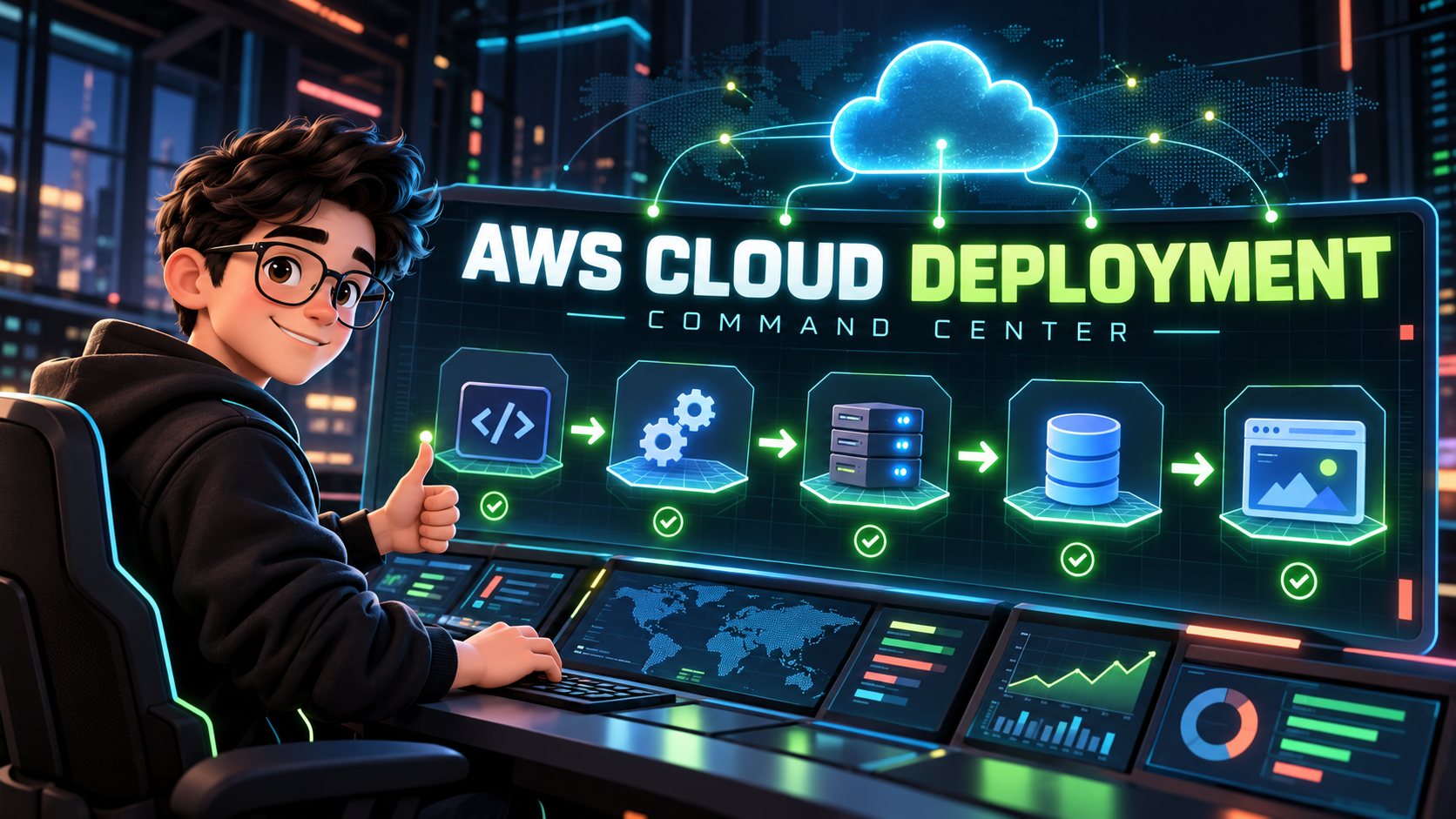
Deployment Command Center

Follow the complete infrastructure workflow, run each safe command and track your progress locally.

AUTO RUNBOOK08 STEPS
DEPLOYMENT TYPEEC2 + RDS Production Deployment
AWS SERVICES7
RUNBOOK STATUSREADY
PROGRESS0%
cloud-runbook / hire-me-portfolio-aws-deploymentSTEP 01
PHASE 01

Validate AWS access

WAITING
MISSION BRIEF

Confirm that the AWS CLI is signed in to the correct account and Region before touching infrastructure.

COMMAND
aws sts get-caller-identity
aws configure get region
EXPECTED OUTPUT
Your AWS account identity and selected deployment Region are displayed.
OPERATOR NOTE

Never paste access keys or secret keys into this portfolio. Keep credentials only in your secure AWS CLI profile.

PHASE 02

Connect to the EC2 server

WAITING
MISSION BRIEF

Open a secure SSH session to the Linux server that will run the PHP application.

COMMAND
chmod 400 /path/to/key.pem
ssh -i /path/to/key.pem ubuntu@EC2_PUBLIC_IP
EXPECTED OUTPUT
A remote Ubuntu shell prompt opens successfully.
OPERATOR NOTE

Replace the key path and EC2_PUBLIC_IP placeholder. Allow SSH only from your own IP in the security group.

PHASE 03

Install the web stack

WAITING
MISSION BRIEF

Update the server and install Apache, PHP, the MySQL driver and the extensions required by the portfolio CMS.

COMMAND
sudo apt update
sudo apt install -y apache2 php php-mysql php-mbstring php-fileinfo php-curl php-xml unzip git
sudo systemctl enable --now apache2
EXPECTED OUTPUT
Apache is active and PHP packages finish installing without errors.
OPERATOR NOTE

This starter command targets Ubuntu. Change the package command if your EC2 image uses a different Linux distribution.

PHASE 04

Deploy the application files

WAITING
MISSION BRIEF

Create the production directory and place the portfolio source code inside it.

COMMAND
sudo mkdir -p /var/www/hire-me
sudo chown -R "$USER":www-data /var/www/hire-me
git clone REPOSITORY_URL_HERE /var/www/hire-me
EXPECTED OUTPUT
The project files are available inside /var/www/hire-me.
OPERATOR NOTE

Replace REPOSITORY_URL_HERE, or upload the ZIP and extract it into the same directory.

PHASE 05

Connect the RDS database

WAITING
MISSION BRIEF

Verify private connectivity from EC2 to the RDS MySQL endpoint, then import the application schema.

COMMAND
mysql -h RDS_ENDPOINT -u DB_USER -p -e "SELECT 1;"
mysql -h RDS_ENDPOINT -u DB_USER -p DB_NAME < /var/www/hire-me/database.sql
EXPECTED OUTPUT
MySQL returns 1 and the portfolio tables are imported into the selected database.
OPERATOR NOTE

Replace every uppercase placeholder. The -p option asks for the password securely instead of storing it in the command.

PHASE 06

Apply production permissions

WAITING
MISSION BRIEF

Give Apache safe read access and allow only the upload directory to remain writable by the web server.

COMMAND
sudo chown -R www-data:www-data /var/www/hire-me
sudo find /var/www/hire-me -type d -exec chmod 755 {} \;
sudo find /var/www/hire-me -type f -exec chmod 644 {} \;
sudo chmod -R 775 /var/www/hire-me/uploads
EXPECTED OUTPUT
Application files are readable and CMS uploads remain writable.
OPERATOR NOTE

Do not use 777 permissions. Keep environment and configuration files outside public downloads.

PHASE 07

Activate the web server

WAITING
MISSION BRIEF

Enable Apache rewrites, validate the configuration and reload the service without interrupting the server.

COMMAND
sudo a2enmod rewrite
sudo apache2ctl configtest
sudo systemctl reload apache2
EXPECTED OUTPUT
Syntax OK is displayed and Apache remains active.
OPERATOR NOTE

Point the Apache document root to /var/www/hire-me before reloading it.

PHASE 08

Verify the production release

WAITING
MISSION BRIEF

Check HTTPS, the public response and the Apache service before marking the deployment complete.

COMMAND
curl -I https://YOUR_DOMAIN
systemctl is-active apache2
EXPECTED OUTPUT
The website returns a successful HTTP response and Apache reports active.
OPERATOR NOTE

Also test admin login, database writes, image uploads, MP4 uploads and mobile layout in the browser.